
Filter RTM Patients by Assigned Providers & Facilities
Providers will see only their RTM-eligible patients by default when logging in and accessing the RTM dashboard.
Step-by-step guide:
1.) Log in to the branded provider app platform and click the "RTM Dashboard" option.
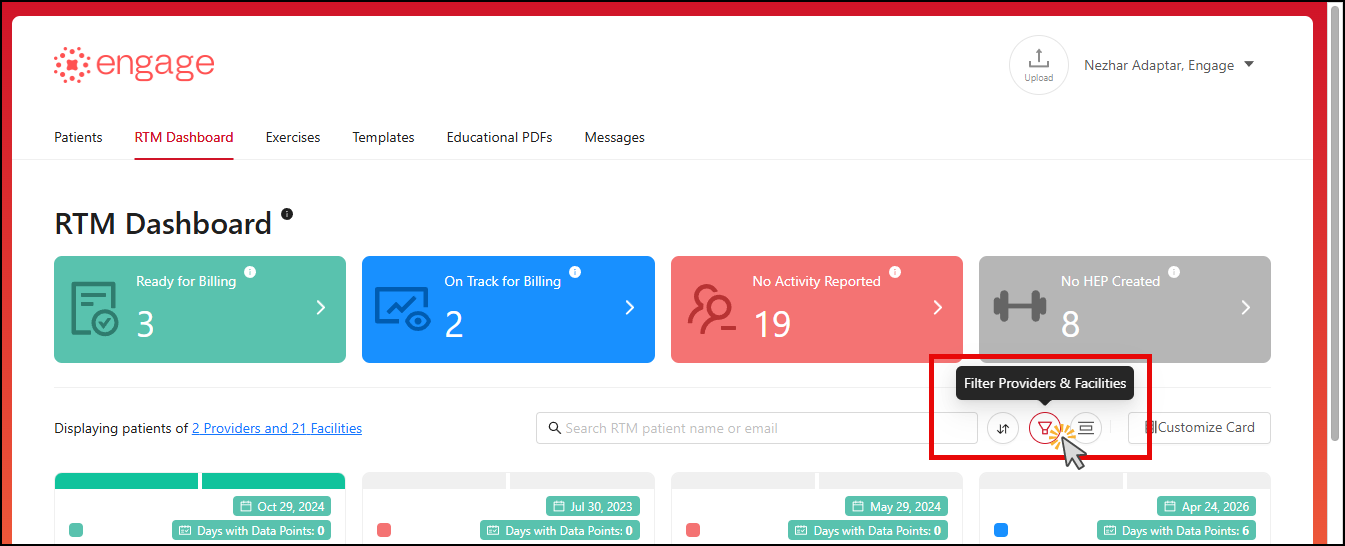
2.) Navigate to the "Search Bar" below the colored blocks and click the "Filter Providers" button.
Users can select either:
a.) Specific providers from the drop-down list - to show all patients assigned to them or the "Select All" option to select all of the providers in the group to show all RTM-enabled patients.
b.) Specific facilities from the drop-down list - so show the patients assigned to those clinics or select the "Select All Clinics" option to show all RTM-enabled patients.
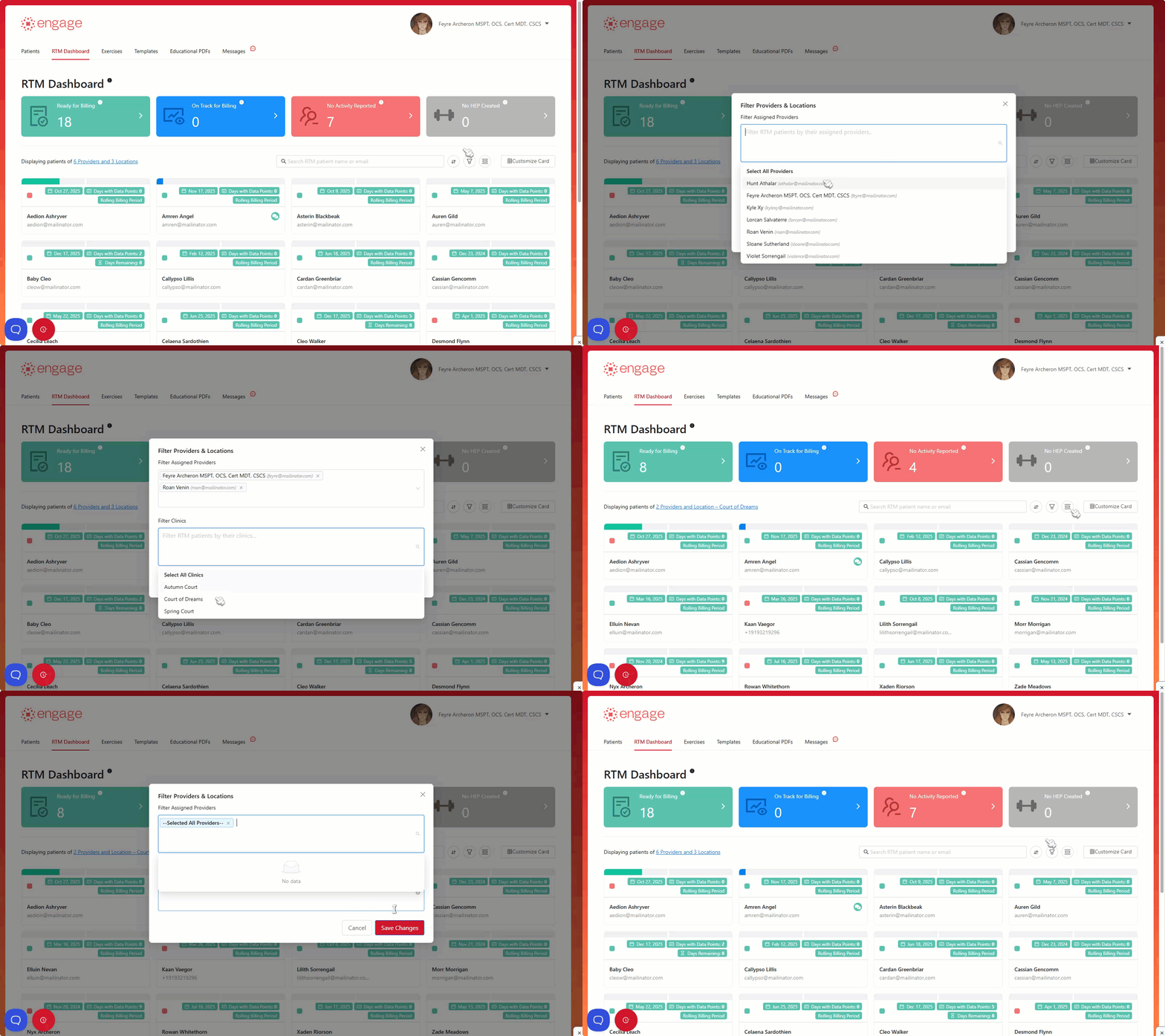
3.) All of the RTM patients in your group will appear in the search results depending on your filter selection.