
RTM Billing Supporting Documentation
Providers can access documentation for RTM billing information through Prompt Engage. This information can be easily copied and exported to your EMR, billing system, or any other platform as required.
How can I access the RTM Supporting Documentation?
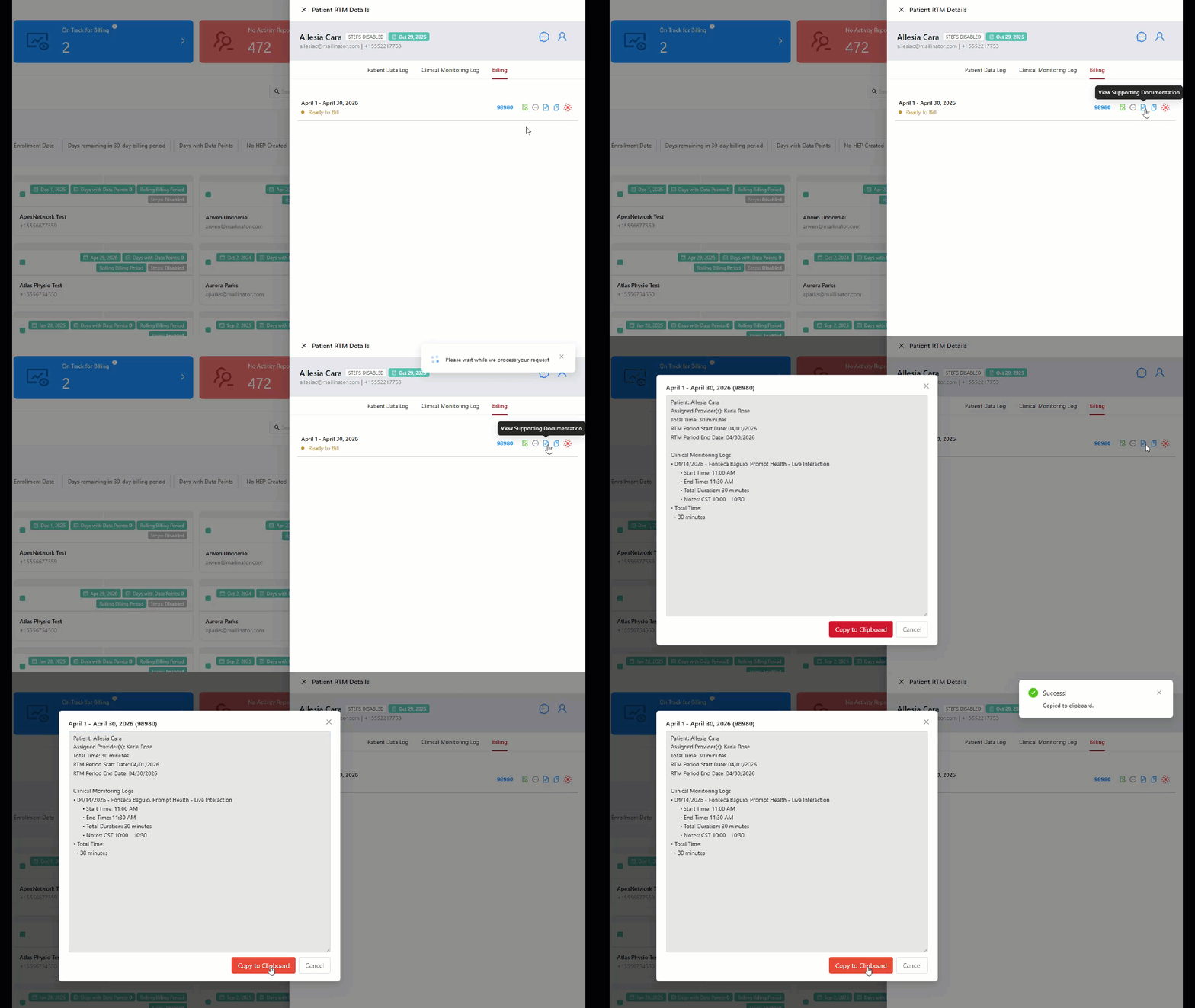
From the Patient RTM Details tray, go to the 'Billing' tab and look for the relevant codes you want to view the documentation:
a.) Click the 'View Supporting Documentation' button, then select 'Copy to Clipboard'. Finally, paste the documentation to your EMR.
b.) For billable codes, you can easily view the supporting documentation and mark the code as billed at the same time by using the 'Copy to Clipboard & Mark as Billed' button.
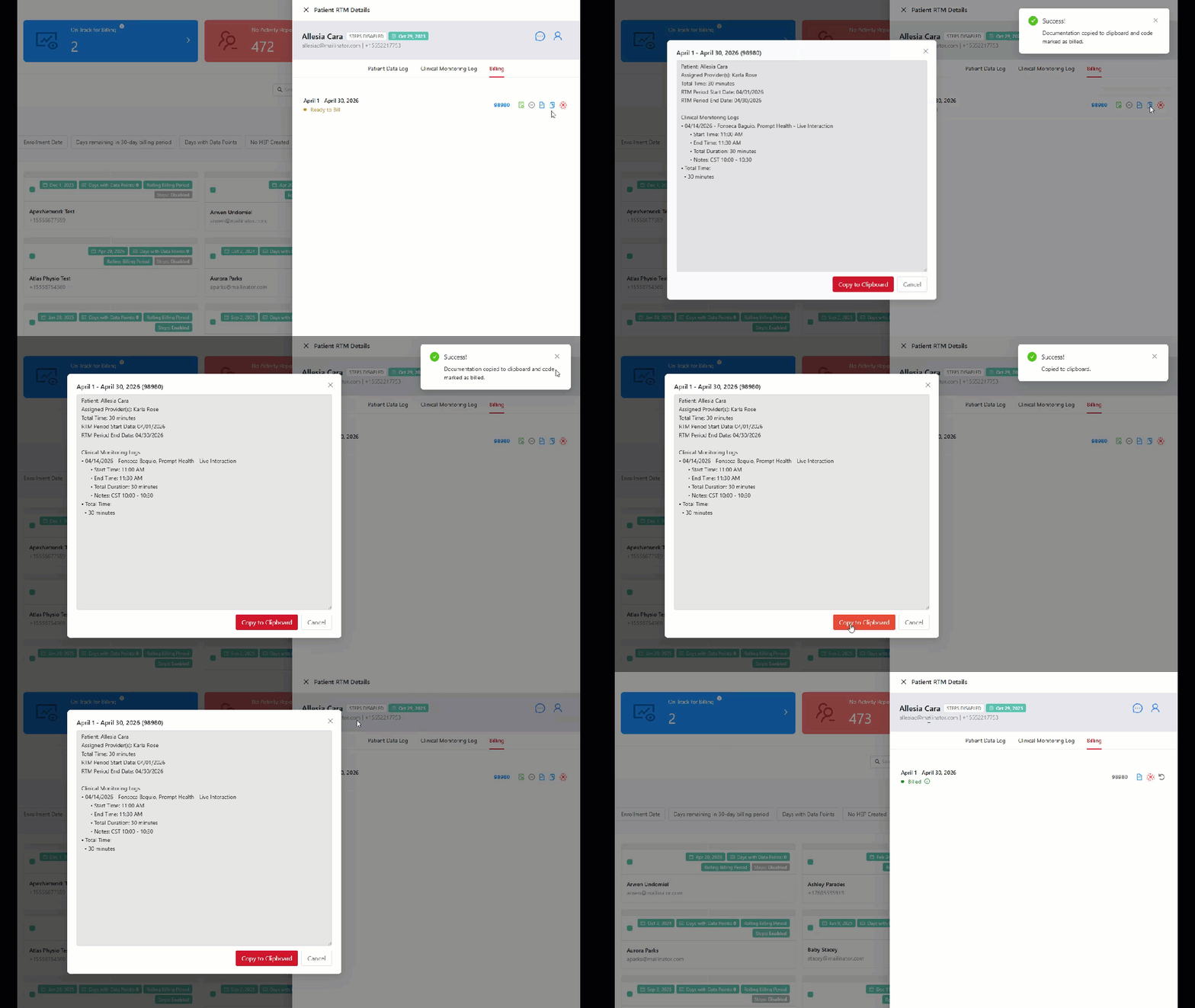
Once a code has been successfully billed, the status will change from 'Ready to Bill' to 'Billed'. If you wish to reset the billing status of the code, or un-bill the code, simply click on the undo arrow to Reset the Billing Status and then select 'Yes' to continue.
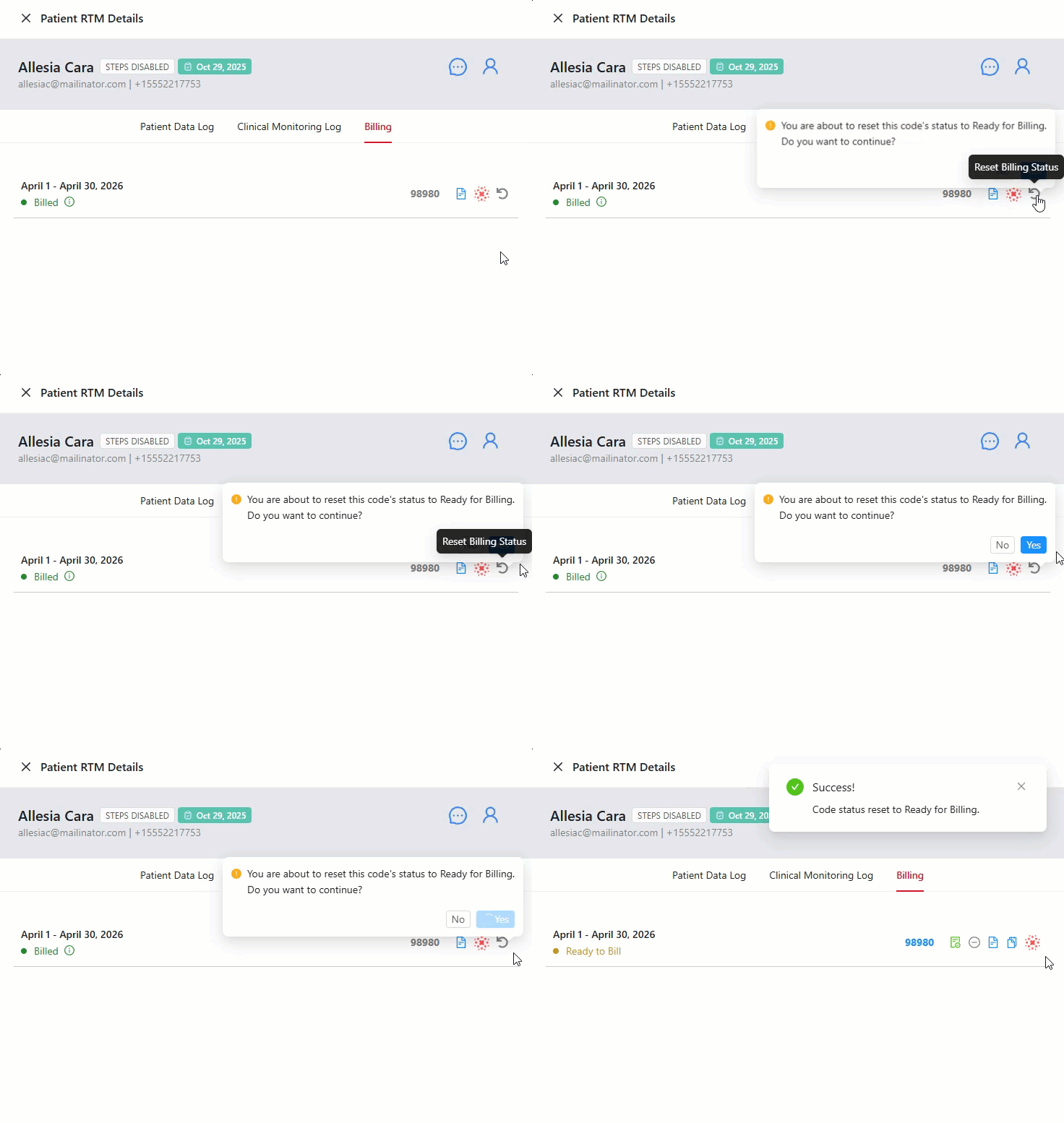
A pop-up will appear notifying you that you have successfully marked the code as unbilled.

Notes:
- Prompt users will use the Prompt icon to export RTM Billing to visit in Prompt.