
Branded Patient Mobile App Login
Patients will be able to log in (using either email address or phone number) to their patient portal by downloading the branded app, either from the iOS App Store or the Google Play Store.
Step-by-Step Guide:
1.) Once patients receive their first Home Exercise Program via email, they'll have the option of either downloading the app from the iOS Store or the Google Play Store.

- Based on which mobile device the patient has, the link clicked will take the patient to the relevant app store to download the app.
- Alternatively, patients can always log in and view their HEPs online via the web access link by clicking the "Web" button.
2.) After downloading & installing the branded mobile app. Patients can enter their email address or phone number (username) and password, then click the 'Log In' button to login.

3.) Check your email address as the system will send a One-time Password code to your email or phone number. After entering the correct OTP code, the system will automatically log you in.
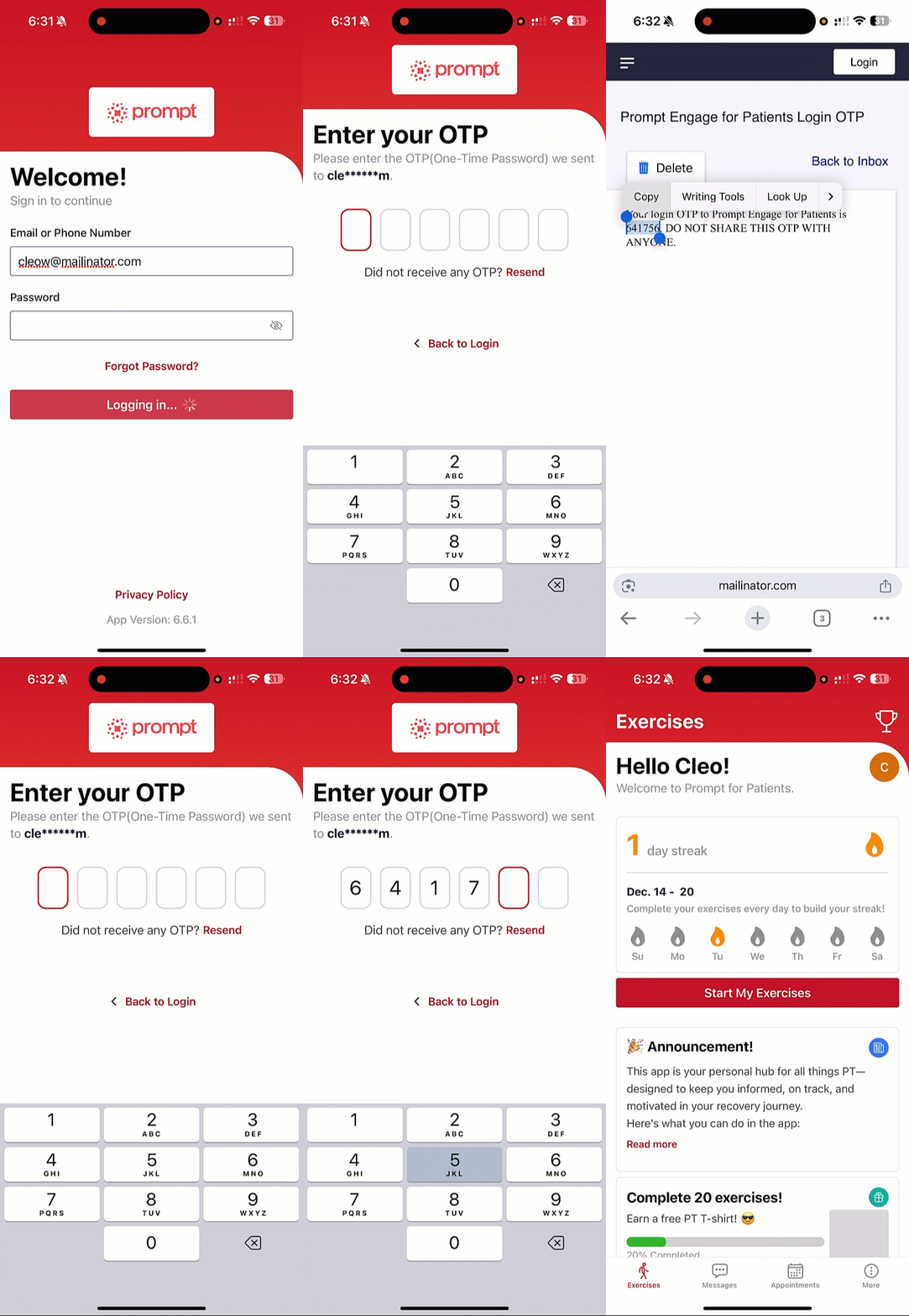
OTP Requirement
- OTP is required for new and existing patients every time they login.
- OTP is not required within the first hour from account activation when logging via mobile app.
- OTP is required for unrecognized device or app reinstalls.
- OTP is required for password resets.
- If biometrics is enabled, OTP requirement is bypassed except during initial setup.
- If you are using a phone number to login, check your SMS messages for the OTP.
Sample Text message:
- Patients will view the intro sequence (Intro Pop-up Message and Owner Intro Video) upon logging in to the app for the first time, after which they'll land on the 'Home' or 'Start Your Exercises' page.
-
Patients can enable Steps Tracking, Biometrics and iOS push notifications during the intro sequence. If the patient did not allow any, they can enable these features from the app 'Settings'.
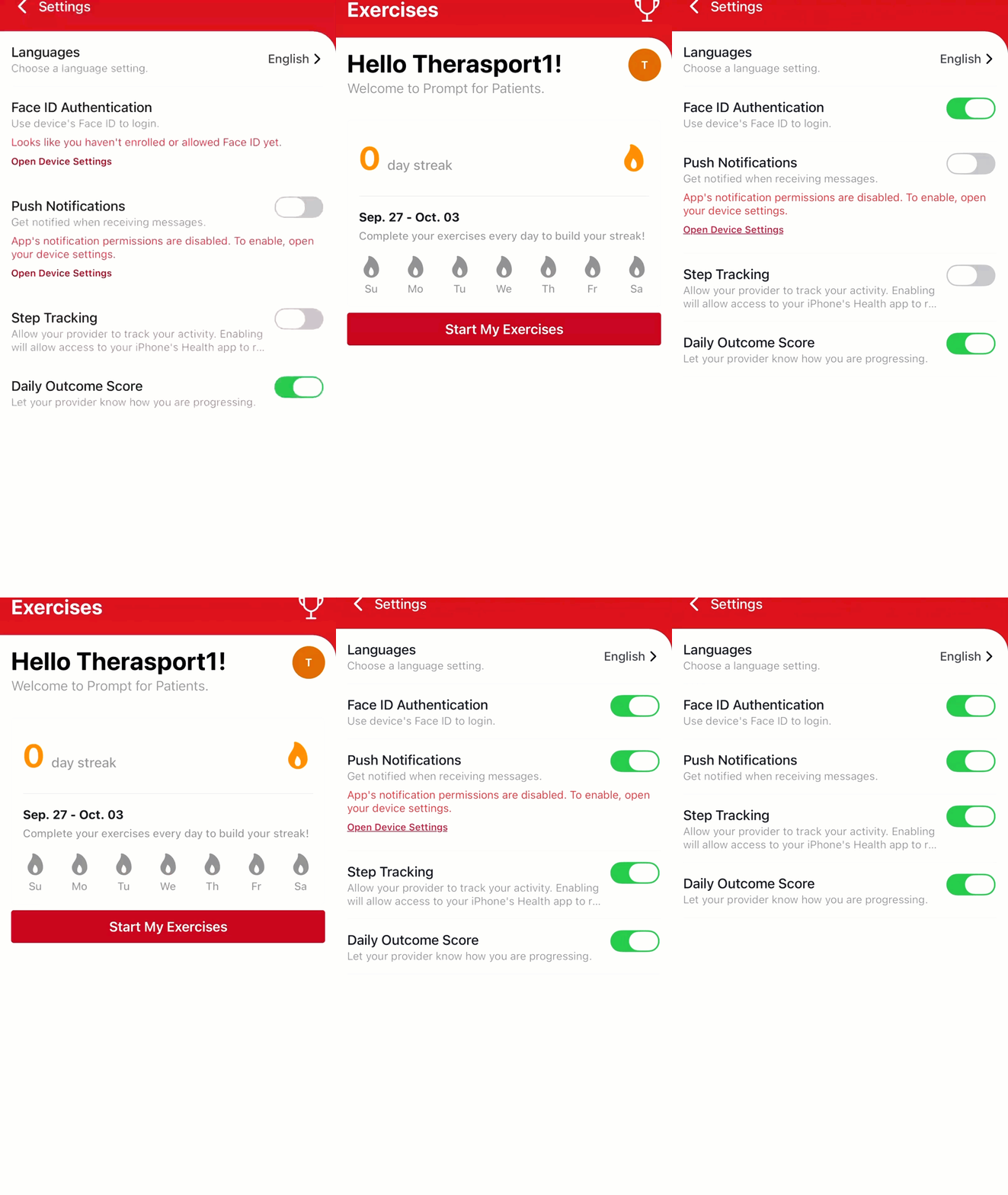
Enabling biometrics, push notifications, and step tracking via settings
Notes:
- The login details for your patient account are case-sensitive.
- Should you or your patient not remember their login details, select "Forgot Password?" on the patient log in page to retrieve the login information.
- Alternatively, providers can also Resend the Patient's Setup Link, which also functions as a "Forgot Password" feature.