
Searching for Patients using Case ID
Patients Page
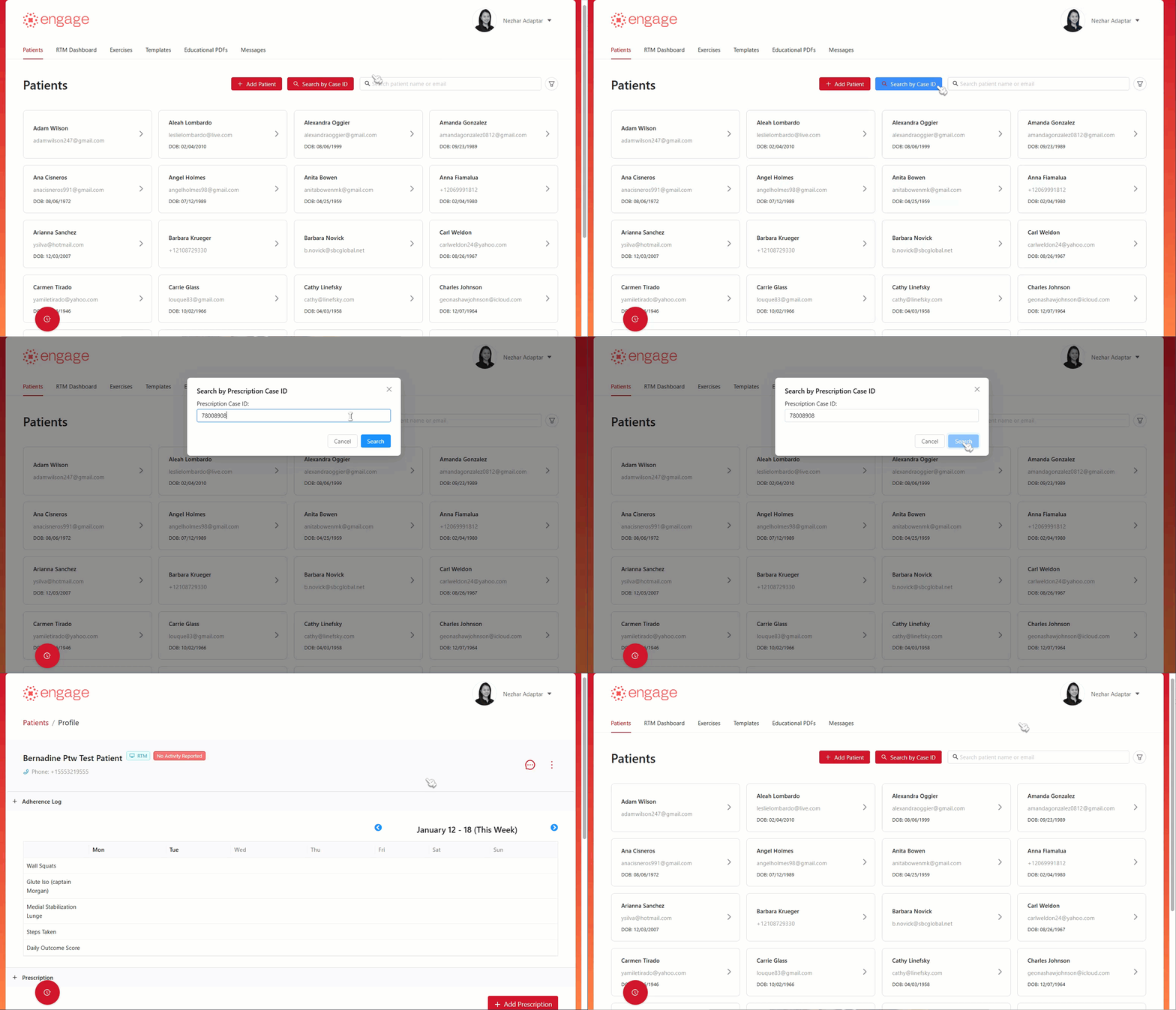
Aside from using an email address or a phone number to look up patients, providers are able to search for a specific patient by making use of the 'Search by Case ID' feature on the main Patients page or on the RTM Dashboard. On the results, click the patient card to go to the patient's profile.
Searching for patients using Case ID. The provider will automatically be directed to the patient's profile.
RTM Dashboard
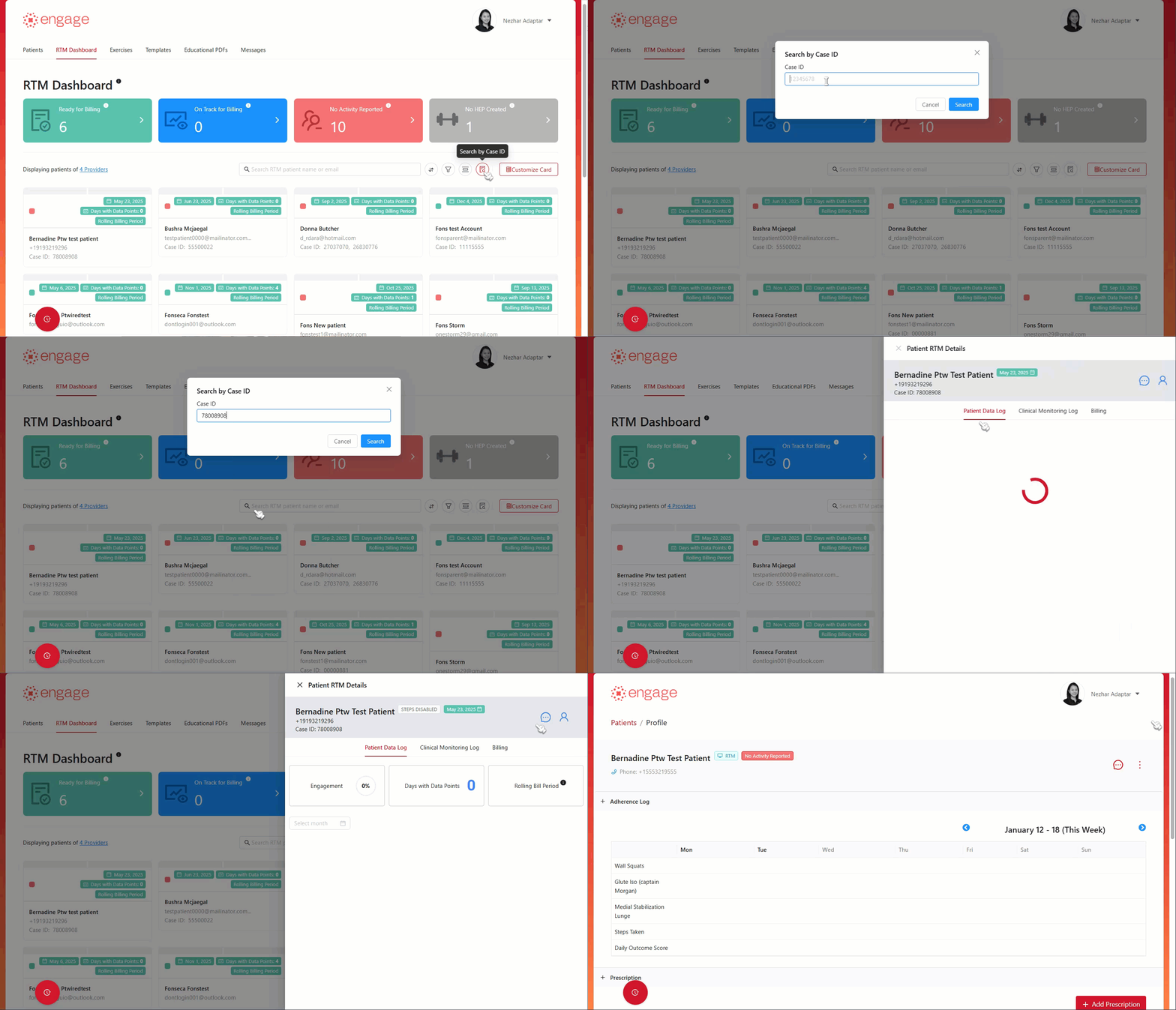
- Click the 'Search by Case ID' button and enter or paste the patient's ID on the field, and then click the 'Search' button.
- After clicking the Search button, provider would automatically directed to the 'Patient RTM Details' tray.
- Click the 'Access Profile' from the tray to go to the patient's profile.
Notes:
- If a patient is not enrolled to RTM and does not belong to any Sports Med and AWS Locations, providers should search via the main Patients page.